Raven Bank USSD Code and Transfer Code in Nigeria
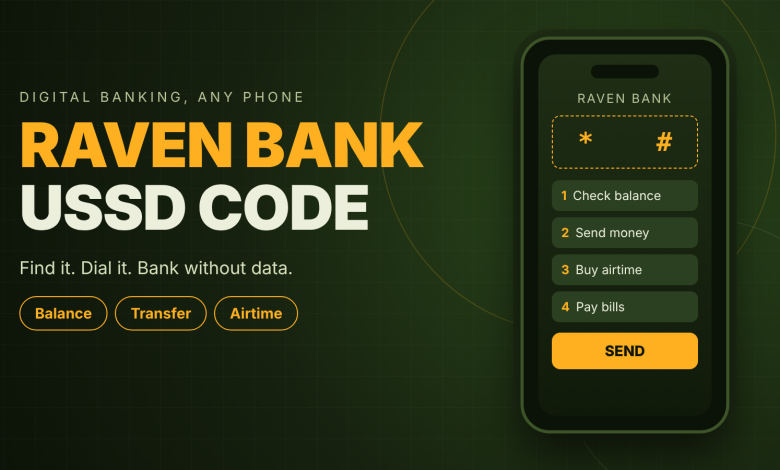
Raven Bank is a Nigerian digital bank built around a mobile app, virtual cards and everyday payments. Many customers also want a way to bank when data is slow, the network is weak or a smartphone is not at hand. That is exactly the job of a bank USSD code: a short string that starts with a star and ends with a hash, which opens a banking menu on any phone. Raven announced plans for a USSD service so that people without smartphones could use its digital services, and this guide shows you how to find your Raven Bank USSD code and use it safely.
What a Raven Bank USSD code does
A USSD code opens a live text session between your phone and the bank through your mobile network. It does not need an app or internet data. Once the menu appears, you type the number of the service you want and press send. Banks that offer USSD usually include checking a balance, sending money, buying airtime and paying bills. Every action that moves money asks for your PIN, and the session closes by itself after a short pause.
How to find the right Raven Bank USSD code
Codes change when a bank updates its services, so always take the number from Raven itself. Use these steps in order.
- 1Open the Raven app
Look in the help or settings area for the USSD or banking-by-phone information. - 2Check official Raven messages
Notices sent to your registered email or phone number carry the current code, so read them before you dial. - 3Confirm with Raven support
Contact the support team through the app if you cannot find the code, and ask them to confirm it for your account. - 4Save it in your contacts
Store the code under a clear name such as Raven USSD, so you never need to search again.
How to use the Raven Bank USSD code
- 1Use your registered SIM
Dial from the phone number linked to your Raven account, because the menu opens only for that number. - 2Type the code exactly
Enter the stars, the digits and the hash in the same order, then press call. - 3Pick a service
Reply with the number beside the service you want, such as balance, transfer or airtime. - 4Check the details
Read the account name, the bank and the amount on the confirmation screen before you continue. - 5Enter your PIN
Type your PIN only inside the session you started yourself, then wait for the success message.
Fixing common Raven USSD problems
| Problem | What to try |
|---|---|
| Invalid code | Retype the code slowly and compare it with the one Raven gave you. |
| Connection problem | Move to a place with better signal and dial again after a minute. |
| Session timed out | Start again and answer each prompt quickly. |
| Menu does not open | Check that you are dialling from your registered SIM. |
| Transfer fails | Confirm the account number and bank, then check your balance in the app. |
When USSD is the better choice
Use the USSD menu when your data bundle has run out, when the app will not load, when you are travelling through an area with poor coverage, or when you are helping a relative who uses a basic phone. It is also a handy backup if your smartphone battery dies and you only have a simple handset with your registered SIM. For larger or more detailed tasks, such as managing a virtual card or reviewing a long statement, the Raven app remains the fuller tool.
Staying safe while you dial
Never share your PIN, one-time password or card details with anyone who calls or messages you, even if they say they work for Raven. A real bank team will not ask for them. Treat any code sent by a stranger as suspicious, and use only the code shown in your own app or in an official notice. Finally, check your account history after a transfer so you can spot a mistake early and report it quickly through the app.
With the right code saved and a registered SIM in your phone, you can reach your Raven account in seconds, even when the internet is slow.