How to Link NIN to Glo (2026): *346# Complete Step-by-Step Guide
A Glo line that is not tied to a National Identification Number (NIN) is a line on borrowed time. Nigerian networks bar unlinked lines, and a barred line means no calls, no data and no OTP messages from your bank. The fix takes a few minutes, and you can do it on the phone in your hand without joining a queue or paying an agent.
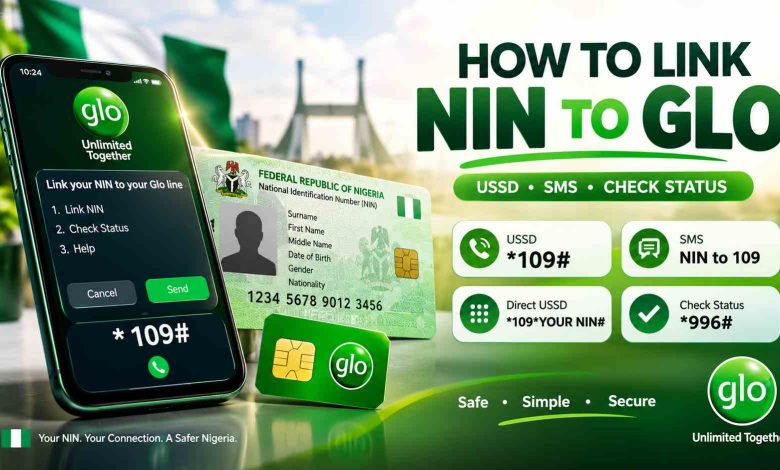
For Glo, the active code is *346#. You dial it from the line you want to link, pick the NIN option, type your 11-digit NIN and wait for the confirmation message. This guide walks through each step in plain language, explains the NIN menu code *996#, shows what to do when the code does not respond, and answers the questions Glo users ask most.
The Glo NIN codes at a glance
Three codes come up whenever people talk about NIN and Glo. Only two of them are worth your airtime today.
| Code | What it does | Use it? |
|---|---|---|
| *346# | Links your NIN to the Glo line you dial from | Yes, this is the active code |
| *996# | Opens the NIN menu so you can check the NIN details tied to your line | Yes, use it after linking |
| *109# | Older code that many people still remember from earlier NIN drives | No, skip it |
If you have used *109# before, you are not imagining things. It was the code many people were told to dial during earlier NIN-SIM drives, and it still lingers in old messages, screenshots and word-of-mouth advice. Treat it as the old code. When you want to link a Glo line today, the code is *346#, and when you want to see the NIN menu, it is *996#.
Why your Glo line needs a NIN
Nigeria’s telecom regulator and the National Identity Management Commission (NIMC) require every active SIM to be tied to a verified NIN. The idea is simple. When one real person stands behind every line, it becomes much harder for fraudsters to run scam calls, clone identities or hide behind throwaway numbers.
For you as a user, linking brings real everyday benefits. Your line stays active instead of being barred. You can recover the number more easily if the SIM is lost or swapped. Banks, fintech apps and government portals that send one-time codes to your number keep working without interruption. And you stop worrying about the next warning text.
Linking does not change your number, your plan or your airtime. It only attaches your identity record to the line, so nothing about the way you call or browse changes afterwards.
What to prepare before you dial
Most failed attempts come from small slips made before the first button is pressed. Spend one minute on this checklist and the rest goes smoothly.
- Your 11-digit NIN. This is the number, not the plastic card or the slip. It has exactly eleven digits and no letters. If you cannot find it, check your NIN slip, your enrolment receipt or the NIMC app, or visit a NIMC office.
- The Glo SIM itself. Put the line you want to link in the phone and dial from that line, not from a different SIM.
- Airtime. Have at least ₦50 on the line. NIN code requests can carry a small service charge, and a session that fails halfway for lack of airtime wastes your time.
- A steady signal. USSD sessions drop quickly in weak coverage, so stand near a window or step outside.
- Matching details. The name you used when you registered the SIM should match the name on your NIN record. Small differences are a common reason for rejection.
- Five quiet minutes. USSD menus time out if you stop typing, so do this when you are not being interrupted.
7 steps to link NIN to Glo with *346#
Follow these in order. Each step is short, and none of them needs an internet connection.
Get your 11-digit NIN ready
Write your NIN on a piece of paper or open the note where you saved it, so you can read it while the menu is open. Count the digits. There should be eleven, with no spaces and no dashes. Keeping it in front of you matters because a USSD session ends if you pause too long to look for a number.
Check your airtime and signal
Dial *124# to see your Glo balance and look at your signal bars. If the balance is low, top up first. If the bars are weak, move to a spot with better coverage. Two minutes of preparation saves you from starting over after the session breaks off.
Dial *346# from your Glo line
Open the dialer, type *346# and press the call button. If your phone has two SIM slots, choose the Glo SIM when the phone asks which line to use. A short wait follows, and then a menu appears on the screen. If you see a connection problem message or the screen closes, wait a minute and dial again.
Read the options on the screen and choose the one that lets you link or submit your NIN to the line. Type its number into the reply box and press send. The wording and the numbering of menu options can change from time to time, so go by what you see on your own screen instead of memorising a number.
Enter your NIN and confirm
When the prompt asks for your NIN, type all eleven digits exactly as they appear and send. If a confirmation screen follows, read the number back once before you accept it. A single wrong digit is the most common reason these requests fail, so this pause is worth taking.
Wait for the confirmation message
A text message from the network usually follows once your request has been accepted. Give it a few minutes before you try anything else, and do not keep re-dialling, because repeated attempts can confuse the session. Keep the message. It is useful proof if your line ever needs to be reopened.
Check the result with *996#
Dial *996# to open the NIN menu and follow the options to confirm that your NIN is tied to the line. If the screen shows your line as linked, you are done. If it does not, wait a while and check again, then move on to the fixes later in this guide.
Other ways to link your NIN to Glo
The code is the fastest route, but it is not the only one. If your phone will not cooperate, these backups work well.
NIMC mobile app
Install the NIMC app from your phone’s app store and sign in or create an account. Choose the option to add or link a phone number, enter your Glo number and submit. A one-time code goes to your Glo line, so keep the SIM in the phone. Type the code in to confirm. One NIN can be linked to up to seven lines, which helps families and anyone who carries more than one SIM.
Glo service centre
Walk into an official Glo outlet with your NIN and a valid ID, such as a driver’s licence, voter’s card or international passport. Ask the agent to link your NIN to your line, and watch the screen while it is entered. Go only to official outlets, and never leave your NIN slip or ID with anyone.
Customer care on 121
Call 121 from your Glo line and explain that you want help linking your NIN. This is also the number to use if your line has been barred and you want to ask how to get it reopened after linking.
A NIMC office
If the problem is with your NIN record itself, such as a wrong name, a wrong date of birth or a missing record, go to a NIMC office. Linking will not succeed until the record is correct.
6 fixes when your Glo NIN linking fails
A failed attempt is rarely a dead end. Work through these in order before you give up on the code.
Fix 1: Network busy or session expired
USSD sessions can time out when the network is crowded. Wait two or three minutes and dial *346# again. Try at a quieter hour, such as early morning or late evening, and make sure your signal is steady before you start.
Fix 2: Wrong NIN or a typing slip
Check that you entered exactly eleven digits with no spaces. Compare each digit against your NIN slip or saved note. If the system says the NIN is invalid, retype it slowly instead of copying it from an old message.
Fix 3: Name or details do not match
If the details on your NIN record differ from the details used to register the SIM, the link can be rejected. Correct the record at a NIMC office, or visit a Glo outlet to update the SIM registration so both agree.
Fix 4: Not enough airtime
A session can stop without a clear reason when the balance runs out. Dial *124# to check, load enough airtime and begin again from step 3.
Fix 5: The wrong SIM is dialling
On a dual SIM phone, the code may run from the other SIM. Set Glo as your call SIM in the phone’s SIM settings, or pick it when the phone asks, then dial again. The code must run from the exact line you want to link.
Fix 6: The code keeps failing
If *346# repeatedly gives errors or no menu, stop retrying and switch method. Use the NIMC app, visit a Glo service centre, or call 121 from your line. Pressing redial over and over rarely changes the result.
Keep your NIN safe while you link it
A NIN opens doors to your identity, so handle it with the same care as your bank details.
- Dial the official codes yourself. Do not let a stranger type them on your phone.
- Never share the one-time code sent to your line with anyone, including a caller who says they work for Glo.
- Do not send your NIN or a photo of your ID to numbers or social media pages that promise quick linking.
- Link only at official Glo outlets and keep your documents in your own hands.
- Be wary of anyone demanding a large fee for something the code does for a few naira. They are not helping you.
Special situations
Your line is already barred
Link your NIN first, using *346# if the line still lets you dial it, or at a service centre if it does not. Then call 121 and ask how the line can be reopened. Keep your confirmation message ready, and expect that the reopening may take a little time.
You have more than one Glo line
Link each line on its own. Put the first SIM in, finish the steps, then repeat with the next SIM. One NIN can serve up to seven lines, so a family or a small business can use a single number for several SIMs.
You are outside the country
USSD codes often do not respond on roaming. If the menu will not open, use the NIMC app instead, or link the line as soon as you are back home.
You replaced your SIM
A new SIM has to be registered properly with your NIN. Visit an official Glo outlet with your NIN and ID so the replacement is tied to you from the start.
Frequently asked questions
What is the code to link NIN to Glo?
The active code is *346#. Dial it from the Glo line you want to link, choose the NIN option and enter your 11-digit NIN.
Is *109# still the right code?
No. It is the older code that many people still remember. Use *346# to link your NIN and *996# to open the NIN menu.
What does *996# do?
It opens the NIN menu on your Glo line. Use it to check that your NIN is tied to the line and to follow any further options the menu shows.
Does linking cost money?
NIN codes can carry a small service charge, so keep some airtime on the line. Beyond that, the code is the cheapest route available. Be careful with anyone who asks you for more.
How many Glo lines can I link to one NIN?
Up to seven lines can be linked to a single NIN. Link each line one at a time, from its own SIM.
How long before my line shows as linked?
Often quite quickly, and you should get a confirmation message. If nothing arrives, wait a while, check with *996#, and contact 121 if the line still shows nothing.
Can I link a Glo line for a family member?
Only with that person’s knowledge and consent. Their NIN goes with their line, and they should be the one to receive and read any one-time code.
What if I do not have a NIN yet?
You cannot link without one. Enrol at a NIMC centre first, then come back to these steps once you have your number.
Final thoughts
Linking your NIN to Glo is one of those chores that feels bigger than it is. Get your 11-digit number ready, dial *346# from the line you want to link, choose the NIN option, enter the digits and wait for the message. Then open the NIN menu with *996# to see that everything is in place.
If the code gives you trouble, you still have the NIMC app, a Glo service centre and customer care on 121. Do it today, keep your confirmation message, and your Glo line will keep working without the stress of a barring notice.