How to Share Data on MTN Nigeria: Transfer Data to Another Number
Sharing mobile data on MTN Nigeria allows you to send part of your available data balance to another MTN subscriber or purchase a data bundle for someone else. This can be useful when a friend, relative, student, or colleague runs out of data and needs internet access urgently. Instead of asking the person to recharge and subscribe independently, you can use MTN’s data-sharing and data-gifting services.
If you want to learn how to share data on MTN, transfer MB or GB to another phone number, buy a bundle for a friend, or request data from someone, this guide explains the available methods. You will also learn the USSD codes, SMS procedure, transfer limits, eligibility requirements, and solutions to common problems.
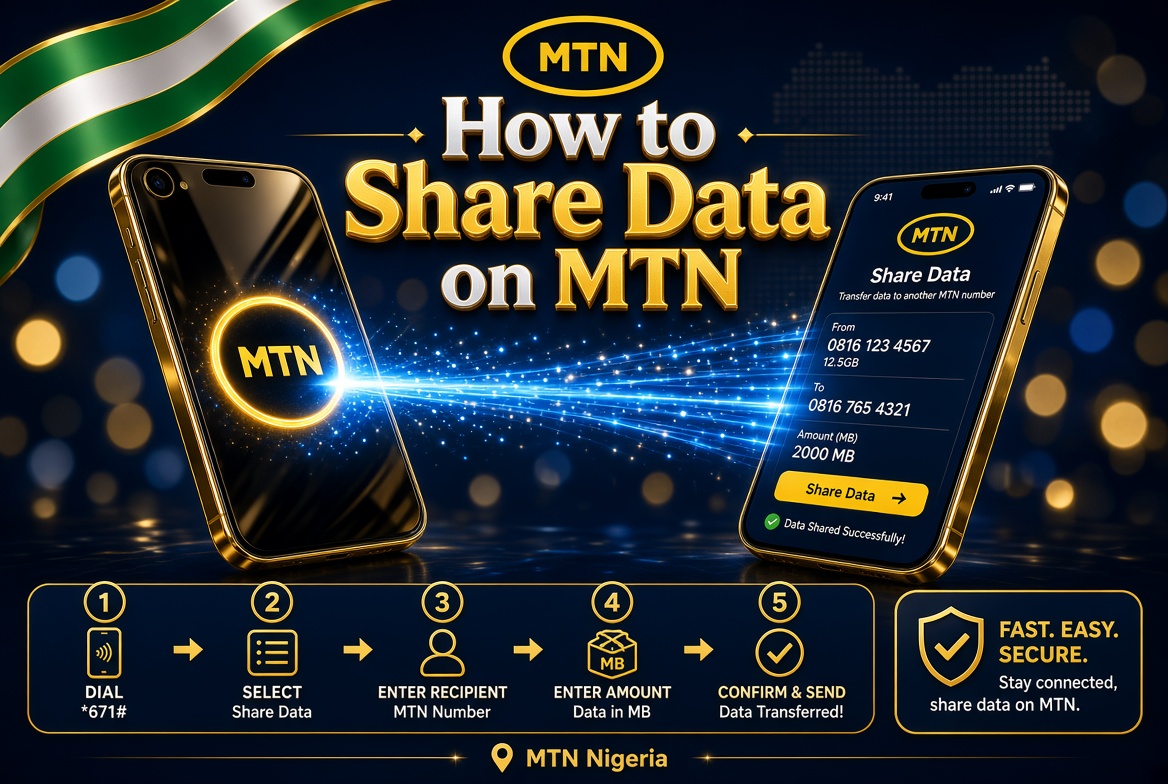
How to Share Data on MTN Nigeria: Transfer Data to Another Number
What Is MTN Data Sharing?
MTN data sharing is a service that allows eligible subscribers to send data from an active data balance to another person. MTN also provides data gifting, which lets you purchase a new data bundle for another subscriber using an available payment method.
Although people often use the expressions interchangeably, transferring existing data and buying data for another person are different transactions. With data transfer, the data comes from your eligible existing bundle. With data gifting, you select and purchase a bundle for the recipient.
MTN also supports requesting data from friends and certain data-sharing arrangements for eligible bundles. The method available to you depends on your subscription, the type of data plan you have purchased, and the service options displayed on MTN’s menu.
What Is the Code for Sharing Data on MTN?
The main direct USSD code for transferring data from an eligible MTN balance is:
*312*Recipient’s Phone Number*Data Amount#
Replace the recipient’s phone number with the MTN number you want to send data to, and replace the data amount with the amount you want to transfer in MB.
For example, to transfer 100MB to an MTN number, dial the code below using the line that contains the data you want to share:
*312*08031235678*100#
The number in this example is for illustration. Replace it with the actual recipient’s number before dialling. Follow any confirmation instructions displayed on your phone to complete the transaction.
You can also access MTN’s data services through the USSD menu by dialling *321*2# and selecting the appropriate option for transferring data. Another published access route is *312*8#, which provides data-gifting options. Menu wording and available options may vary.
The direct USSD method is convenient because it does not require an internet connection or a smartphone application. You only need your MTN SIM card, an eligible active data bundle, and the recipient’s correct phone number.
- Open the phone application you use to make calls.
- Enter the MTN data-transfer code in this format: *312*PhoneNumber*DataAmount#.
- Replace PhoneNumber with the recipient’s complete mobile number.
- Replace DataAmount with the quantity of data you want to transfer, such as 100, 200, or 500.
- Press the call button using the MTN line that holds the data balance.
- Read the response displayed on your screen.
- Confirm the transaction if MTN requests confirmation.
- Wait for the success notification before assuming the data has been transferred.
For example, if you want to send 500MB to a friend whose number is 08031234567, enter *312*08031234567*500#. Ensure that you have entered the number and data amount correctly before proceeding.
If the direct code does not work, dial *321*2# and follow the menu prompts for transferring data. Using the menu can be helpful when you are unsure which transfer amount to enter or when the network requests an additional confirmation.
MTN also provides an SMS method for transferring eligible data. This option can be useful if you prefer sending a text command instead of navigating a USSD menu.
To use the SMS method, compose a text message in the following format:
Transfer RecipientPhoneNumber DataAmount
For example, to transfer 100MB to the number 08031235678, send this message to 312:
Transfer 08031235678 100
Follow the instructions provided in any response from MTN. Check that the recipient’s number and the requested data amount are correct. If the SMS command is rejected or the service is unavailable on your line, use the USSD menu or myMTN app instead.
Remember that an SMS transfer command is different from an ordinary text message to another person. It must follow the required format and be sent to the designated service number.
The myMTN app provides another way to manage data and share eligible balances. This method may be easier for people who prefer using an app instead of remembering USSD codes.
- Install the official myMTN app from your device’s app store if you have not already installed it.
- Open the app and sign in using your MTN number.
- Complete any verification steps required by the app.
- Look for the Share option on the available services screen.
- Select Data Share.
- Enter the recipient’s MTN phone number.
- Choose the available transfer amount.
- Review the recipient’s number and the amount carefully.
- Confirm the transaction and wait for the result.
The app’s interface may change as MTN updates its services. If you cannot find Data Share, check the available data-management options or use the published USSD method instead.
You should also distinguish between sharing data from an existing balance and buying a new bundle for someone else. The app may display separate options for these activities.
How to Buy MTN Data for Someone Else
If you do not want to transfer data from your existing bundle, you can purchase a new data plan for another MTN subscriber. This service is generally known as Buy for a Friend or Gift Data.
To purchase a bundle for someone else, you can use the available MTN data menu or a supported channel such as the myMTN app.
- Dial *312*8# or use the available data menu on your MTN line.
- Choose the option for buying data for another person.
- Select the type of bundle you want to purchase.
- Choose the appropriate validity period and data plan.
- Enter the recipient’s MTN phone number.
- Check the number and the bundle details before confirming.
- Complete the transaction using the payment method presented.
- Wait for confirmation that the bundle purchase was successful.
MTN also publishes a direct format for gifting a specific bundle: *312*BundleActivationCode*RecipientPhoneNumber#. The activation code depends on the bundle you want to purchase, so use the correct code for the selected plan rather than guessing.
Buying a bundle for someone else does not necessarily deduct the data from your own existing data balance. It is a separate purchase, and the cost and payment requirements will be displayed during the transaction.
How to Request Data from a Friend on MTN
If you have run out of data and cannot purchase another bundle immediately, you may be able to request data from a friend through MTN’s data-gifting service.
MTN publishes *312*8# and *321*2# as access routes for its data-gifting options. The menu can provide an option to request data from another subscriber.
- Dial *312*8# or *321*2#.
- Choose the option to request data.
- Enter the phone number of the person you want to request data from.
- Follow the instructions displayed on your screen.
- Wait for the other person to respond to your request.
A request does not guarantee that data will be sent. The other subscriber may need to approve or complete the transaction, and the service must be available for both lines.
MTN lists several standard amounts for transferring data from an eligible balance. These include 100MB, 200MB, 500MB, 1GB, 2GB, 3GB, and 5GB.
| Transfer amount | Availability |
|---|---|
| 100MB | Listed transfer option |
| 200MB | Listed transfer option |
| 500MB | Listed transfer option |
| 1GB | Listed transfer option |
| 2GB | Listed transfer option |
| 3GB | Listed transfer option |
| 5GB | Listed transfer option |
The options displayed during your transaction determine which amounts you can select. You may not be able to transfer every listed amount from every bundle.
MTN also states that you must retain at least 100MB in your eligible data balance after a transfer. Therefore, having enough data to cover the amount you want to send is not the only requirement. You must also have sufficient data remaining after the transfer.
What Is the Maximum Data You Can Transfer Per Day?
MTN’s published data-sharing information sets a cumulative daily transfer limit of 5GB for eligible transfers from an existing data balance. You can make multiple transfers, provided you remain within the applicable service limits and satisfy the balance requirements.
For example, a customer may make more than one transfer during the day, but the combined amount must remain within the applicable daily limit. The network can also restrict a transaction if the bundle is ineligible or the remaining balance is insufficient.
MTN has also published a limit of ten no-charge data transfers per month. After those transfers, a consent prompt may appear asking you to accept an applicable transfer fee before another transfer proceeds. Review the prompt carefully; if you do not accept the fee, the transaction will not be completed.
These limits relate to transferring existing data. Buying a bundle for another person is a different service and may have different conditions.
Yes. Transferred data has a validity period, and the amount of time available depends on the transfer size and the applicable MTN rules.
MTN’s published data-plan information states that transfers of 100MB to 2GB are valid for seven days, while transfers of 3GB and 5GB are valid for fourteen days. Always check the terms and confirmation message for your specific transaction because service conditions and eligible bundles may change.
Gifting a new bundle is different. Its validity generally follows the selected data plan’s terms. A daily bundle, weekly bundle, and monthly bundle can have different expiry periods.
Recipients should use transferred or gifted data before it expires. Do not assume that unused shared data will automatically roll over when the validity period ends.
No. Not every MTN data plan supports sharing or gifting. Eligibility depends on the bundle’s terms and the type of data allowance you have.
MTN states that some special plans, promotional allowances, bonuses, and certain short-validity bundles may not be eligible for transfer. Its Smart Bundles, for example, are identified as plans that cannot be shared or gifted under the applicable rules.
If you are unable to transfer data despite having a balance, the bundle type may be the reason. Check your active subscription details and use the transfer menu to determine whether an eligible balance is available.
Why Is MTN Data Sharing Not Working?
Several issues can prevent an MTN data transfer from succeeding. Before repeating the transaction, check the following possible causes.
1. Insufficient Data Balance
You may not have enough eligible data to complete the transfer while retaining the required minimum balance. MTN states that at least 100MB must remain after the transfer. Try a smaller amount if the menu offers one.
2. The Bundle Is Not Eligible
Some data plans and bonus allowances cannot be shared. Having a large balance does not automatically mean the balance is transferable. Check the terms of your active plan.
3. Incorrect Recipient Number
An incorrect phone number can cause the transaction to fail or create a risk of sending data to the wrong person. Review the number before confirming any transfer or gift.
4. You Have Reached a Transfer Limit
You may have reached the daily data-transfer limit or the monthly allowance for no-charge transfers. Read any message displayed by MTN to determine whether a limit or transfer fee applies.
5. Temporary Network Problems
USSD requests and SMS commands may occasionally fail because of network congestion or a temporary service problem. Wait briefly and try again, or use another supported method such as the myMTN app.
6. The Transaction Was Not Confirmed
Some transactions require you to confirm the recipient, data amount, or applicable fee. If you leave the menu before completing the required steps, the transfer may not proceed.
7. You Used the Wrong Method
Data transfer, data gifting, and airtime transfer are different services. Make sure you are using a data-sharing option rather than an airtime-transfer menu.
How to Check Your MTN Data Balance After Sharing
After completing a transfer, check your remaining data balance to confirm that the transaction was processed as expected. MTN provides several balance-checking methods, including SMS, USSD, and the myMTN app.
- SMS: Text 2 to 323.
- USSD: Dial *323*4# for the applicable data-balance service.
- myMTN app: Open the app and check your data dashboard or balance section.
The available balance display may separate different bundles or allowances. Check the details rather than assuming every active data balance can be transferred.
Tips for Sharing Data Safely on MTN
- Verify the recipient’s phone number before confirming a transaction.
- Choose a transfer amount that leaves enough data for your own browsing needs.
- Read any service-fee prompt before accepting a transfer.
- Keep confirmation messages until you know the transaction has succeeded.
- Use official MTN channels and avoid giving your account verification details to strangers.
- Check the validity period so that the recipient can use the data before it expires.
- If a transfer fails, check your balance and transaction status before repeatedly attempting the same request.
Frequently Asked Questions About MTN Data Sharing
Dial *312*RecipientPhoneNumber*DataAmount#. You can also dial *321*2# and follow the menu instructions for data transfer.
Yes. You can use the USSD code or supported SMS method without needing mobile internet access. The service must be available on your line.
Can I send 1GB from my MTN data balance?
MTN lists 1GB as a standard transfer amount. You must have an eligible bundle with sufficient data remaining after the transfer, and the option must be available for your line.
MTN’s data-transfer service is intended for eligible MTN subscribers. If the recipient uses another network, consider purchasing a suitable data product through a supported service instead.
Is sharing data the same as buying data for a friend?
No. Sharing transfers data from your eligible existing balance. Buying data for a friend purchases a new bundle for the recipient.
Do I need a PIN to transfer MTN data?
MTN’s published data-gifting guidance says a PIN is not required for the described gift-data process. Follow the instructions presented by the official service you are using, as requirements can differ between services.
What should I do if the transfer fails?
Check the recipient’s number, your remaining eligible data balance, the bundle’s sharing rules, and any transfer-limit message. If the problem continues, contact MTN customer care for assistance.
Conclusion
Sharing data on MTN Nigeria is straightforward when you use the correct method. The direct transfer format is *312*RecipientPhoneNumber*DataAmount#, while *321*2# provides a menu-based option. You can also use the SMS method or myMTN app, buy a fresh bundle for someone else, or request data from a friend.
Before transferring data, confirm that your bundle supports sharing, check the recipient’s phone number, and make sure you retain the required minimum balance. Remember that transfer limits, fees, and validity periods apply. If a code does not work, use the available menu or check MTN’s current service instructions for your subscription.