Absa Online Banking South Africa: Login, Register & Complete Guide (2026)
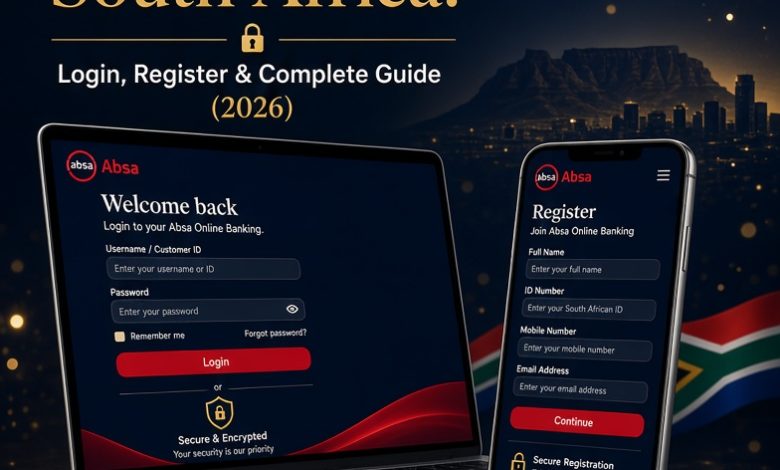
Absa Online Banking lets South African customers manage their money from a laptop, tablet or phone browser at any hour. You can pay beneficiaries, buy prepaid airtime, electricity and data, view your accounts and handle your profile without queuing at a branch. Absa also states that there are no monthly fees on its electronic channels.
This guide takes you through registering, logging in, resetting a forgotten PIN, linking the Absa Banking App, setting up business access and keeping your profile secure.
What Is Absa Online Banking?
Absa Online Banking is the bank’s secure website service for personal and business customers. After you register, you log in from the Absa website and reach your accounts, payments and profile settings. It sits beside the Absa Banking App and Cellphone Banking, so you can choose the channel that suits the moment. Online Banking suits tasks that involve a keyboard, such as paying several beneficiaries, reviewing statements or managing your profile.
What You Need to Register
- A valid South African ID number and an active Absa account
- Your Absa card or account details
- A phone that can receive SureCheck notifications, because SureCheck confirms your registration
- A quiet minute to choose a strong PIN
How to Register for Absa Online Banking
How to Log In to Absa Online Banking
How to Reset Your PIN and Password
If you have forgotten your PIN, you do not need to visit a branch. Absa lets you reset it with AbsaID facial biometrics.
Facial biometrics works only when you have a valid South African ID and a photo registered with the Department of Home Affairs.
Linking the Absa Banking App
The Banking App uses the same account, and many customers set it up so approvals and daily banking sit in one place.
App or Online Banking: Which One Should You Use?
| Task | Absa Banking App | Absa Online Banking |
|---|---|---|
| Quick balance check | Fastest | Works well |
| Paying several beneficiaries | Works well | Easier with a keyboard |
| Approving a payment | On the phone | Through SureCheck on your phone |
| Managing profile settings | Available | Full profile management |
| Login method | Passcode or biometrics | Account number, PIN and user number |
Business Online Banking
Business customers register through the same Log in menu by selecting Business and then Register. You then choose the Business, Create new PIN tab. Your business account must first be registered at a branch, where your business banker also gives you a combi card number.
PayShap and Other Services
Once you are logged in, open Transact on the side menu to find payments, beneficiaries and PayShap registration. You can also buy prepaid airtime, electricity and data, view statements and pay your credit card from the same session.
How to Pay a Beneficiary
Paying people and businesses is the job most customers use Online Banking for. Once you are logged in, the process is straightforward and repeatable.
Saved beneficiaries make repeat payments quick, so it is worth adding the people and businesses you pay often, such as your landlord, school or service providers.
Buying Prepaid Airtime, Electricity and Data
Online Banking lets you top up without leaving your desk. Choose the prepaid option from the side menu, select airtime, data or electricity, then pick the network or municipality. Enter the cellphone number or meter number carefully, because a wrong digit sends the purchase to someone else. Confirm the amount, approve the purchase, and keep the token or confirmation shown on the screen. For electricity, copy the token number straight away so you can enter it on your meter.
Understanding SureCheck
SureCheck is the approval step that protects your profile. When you register, log in on a new device or confirm certain transactions, Absa sends a request to your registered device. You review what the request says and approve it only if you started the action yourself. If a request appears and you did not do anything, decline it and contact Absa straight away, because someone may be trying to use your details.
Keeping your phone number up to date with Absa matters here. If your number changes and the bank still holds the old one, approvals go to the wrong device and you may be locked out of important actions.
Managing Your Online Banking Profile
Absa lets you manage your profile online, from security features and language preferences to account activity and passwords. Open your profile settings after logging in, and review them now and then. Check that your contact details are correct, look at your recent account activity for anything unfamiliar, and update your PIN when you feel it is time. Registering for Online Banking is also part of setting up a new account, so new customers can complete it as soon as the account opens.
Keep Your Absa Online Banking Safe
- Never share your PIN, user number or SureCheck approvals
- Type the Absa website address yourself, and avoid clicking login links in emails or messages
- Decline any SureCheck request you did not start
- Log out every time, and avoid shared computers
- Update your phone number with Absa if it changes
- Use a PIN you do not use anywhere else
Common Login Problems
- PIN not accepted: stop after a few tries and use Reset PIN
- SureCheck does not arrive: check that your phone is online and the registered device is the one in your hand
- Captcha will not load: refresh the page and try again
- Business login fails: confirm your account is registered and you have your combi card number
Good Habits for Everyday Online Banking
Small routines keep your account in good shape. Log in only from devices you trust, and keep your browser and operating system updated. Review your transactions every week, so you spot a payment you do not recognise early. Keep your registered phone number current, and store your reference numbers for large payments until the recipient confirms they arrived. If you share a computer at home or at work, always log out and close the browser window when you finish, so the next person cannot reach your session.
Contact Absa
For help, phone 08600 08600 or write to [email protected].