Glo Café Login Guide: 5 Easy Steps to Sign Up and Sign In
Want to check your balance, buy data or pay a bill without visiting a Glo store? Glo Café is the Globacom app that puts your account in your pocket. You create an account once, then log in whenever you need something.
What Glo Café Is
Glo Café is Globacom’s free self-service app for managing a Glo line. It is available on the Google Play Store, the Apple App Store and the web, so you can use it on an Android phone, an iPhone or a computer. Everything starts with a Glo Café account, which keeps your details in one place.
What You Can Do After Login
- See your balance, recent recharges and data usage
- Buy 2G, 3G and 4G data packs and other offers
- Recharge your own line or another Glo prepaid number
- Pay bills from the same screen
- Find a nearby Glo store and reach support
- Check coverage, run a speed test and report network issues
- Ask Gloria, the voice assistant, for help in several languages
How to Sign Up on Glo Café
- Download Glo Café from the Play Store or the App Store and open it.
- Tap the sign up option on the first screen.
- Enter your Glo phone number and your email address. Email is needed for every account, so use one you can access.
- Create your password and follow the verification steps shown on the screen.
- Accept the terms and finish. Your account is ready for login.
How to Log In
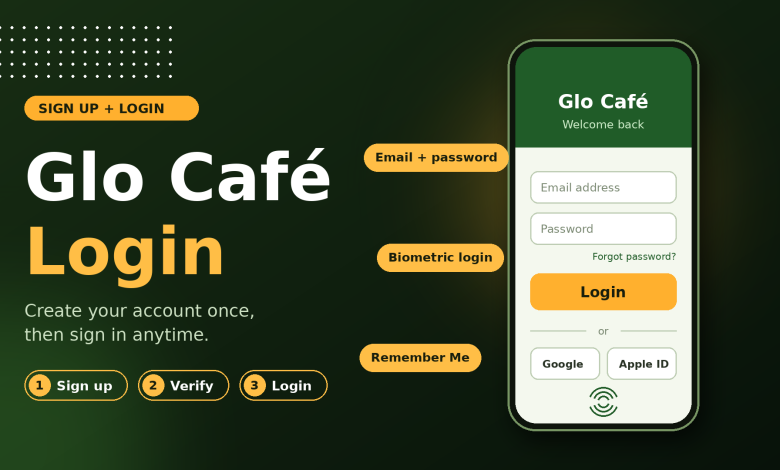
- Open the app and choose the login option.
- Enter your email and password, or tap Google or Apple ID if you signed up that way.
- Tick Remember Me if the phone is yours alone.
- Turn on biometric login in the app so your fingerprint or face can open it next time.
In the current version, your session stays active until you sign out, so you will not be asked to log in again and again.
Login Directory
| Sign in method | Best for | Where |
| Email and password | Everyday sign in on any phone | Glo Café app |
| Biometric login | Fast access with fingerprint or face unlock | Phones with biometrics set up |
| Google one-tap | Quick sign in with your Google account | Android and iPhone |
| Apple ID one-tap | Quick sign in with your Apple account | iPhone and iPad |
| Remember Me | Skipping retyping your details | Your own personal phone |
Fixes When Login Does Not Work
- Check that your data or Wi-Fi connection is working
- Retype the email address slowly, because one wrong letter blocks access
- Update Glo Café to the latest version from the app store
- Close the app fully and open it again
- Use the password reset option on the login screen if you forgot your password
- Reinstall the app as a last step, then log in again
Keep your password private and sign out on any phone you share. With your account set up and your preferred login method saved, Glo Café becomes the quickest way to handle your line.